
Your cart
Heading
Heading

No recording of PIN
Tap to Pay on iPhone is designed to prevent all photo, video, screenshot, and screen-recording features on the merchant's iPhone from capturing a customer's card number or PIN information.

No additional hardware.
There’s no need to invest in and manage card readers and terminals, so Tap to Pay on iPhone makes it simple to start a new business or expand a current one. With just an iPhone and the Adaptis Tap To Pay app, anyone can accept contactless payments. It’s that simple.

Expand where you do business.
With Tap to Pay on iPhone, anyone can do business in more places simply by accepting contactless payments right on iPhone. The checkout experience makes it easy to connect with customers, take payments in more places, and explore new setups. It’s like business, all you need is iPhone and the Adaptis Tap To Pay app.
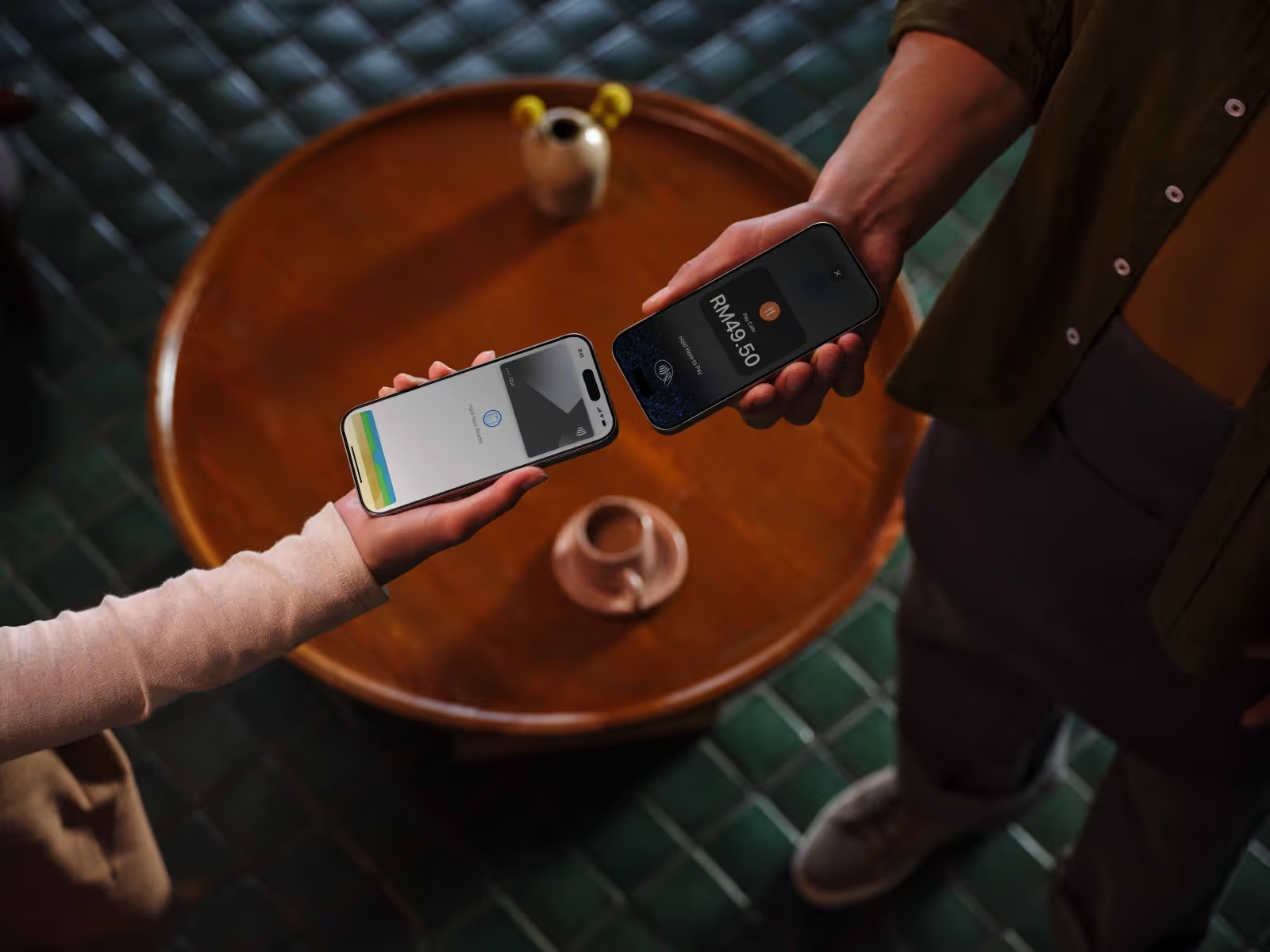
Privacy and security built in.
Tap to Pay on iPhone uses the built-in security and privacy features of iPhone. When a payment is processed, Apple doesn’t store card numbers on Apple servers — helping to protect your business and customer data. So merchants and customers can rest assured that their data stays theirs.
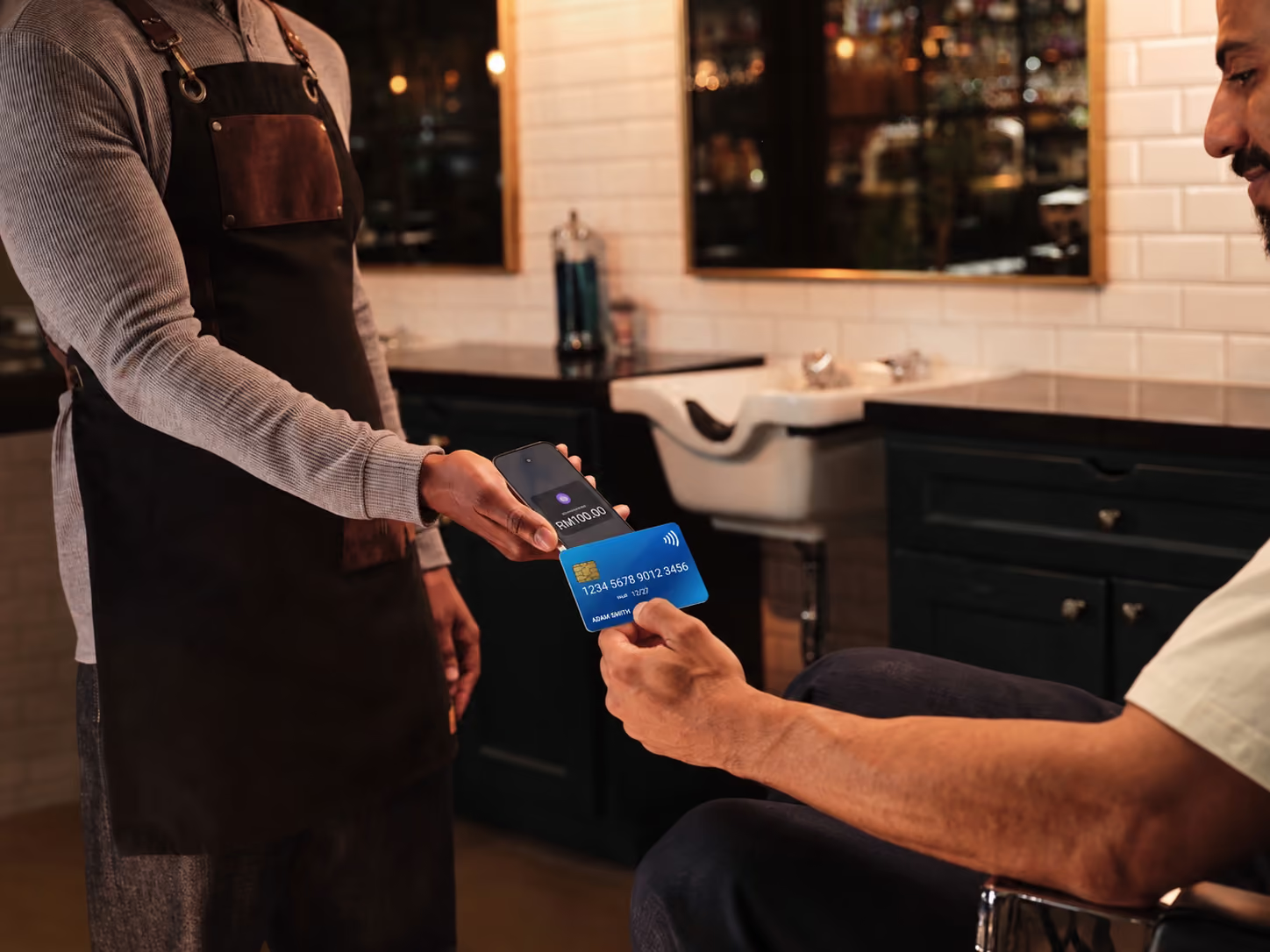
No recording.
When a payment is processed, Tap to Pay on iPhone is designed to prevent all photo, video, screenshot, and screen-recording features from capturing a customer’s card number.

Get started in a few steps
Download the ADAPTIS
Tap to Pay iOS App
Complete the sign-up information.
Accept in-person, contactless payments - right on your iPhone or get a new one with just RM199/month.
Get started with Tap to Pay on iPhone today.
Frequently Asked Questions
Merchants are only able to use iPhone to accept payments with this feature.
Tap to Pay on iPhone is supported on iPhones XS and later, and runs on iOS 16 and above.
PIN card transactions are not currently supported.
No, Tap to Pay on iPhone does not have a noticeable impact on battery life
From the PIN entry screen, tap Accessibility Options to turn on the accessibility mode for PIN entry.
When the accessibility mode is on, the device reads out loud the following instructions for PIN entry:
- Tap once for 1, tap twice for 2, and so on. Tap ten times for 0.
- Pause between taps for each digit. The device plays a sound to confirm entry for each digit.
- Swipe right with two fingers to confirm the PIN.
- Swipe left with two fingers to delete the last PIN digit entered.
- Swipe down with two fingers to cancel the payment.
- Swipe up with two fingers to read out loud the number of PIN digits entered.
You can use the side buttons on your iPhone to adjust the volume as needed.
To turn off the accessibility mode, tap Turn Off Accessibility Options.
PIN entry times out after 5 minutes. The accessibility mode turns off automatically when the Tap to Pay on iPhone interface times out or is dismissed.
Learn how to accept payments with Tap to Pay on iPhone (https://developer.apple.com/tap-to-pay/how-to-accept-payments/)
With Tap to Pay on iPhone, you can accept any form of contactless payment, including Apple Pay on iPhone and Apple Watch, other digital wallet and payment services, and contactless debit and credit cards.

.avif)
.avif)